
Video
Download a Pinterest Video - Available MP4 Files
Free Pinterest video downloader: paste a public Pin link to check available MP4 sizes and quality, then save the file in your browser. No sign-up or app.
 1
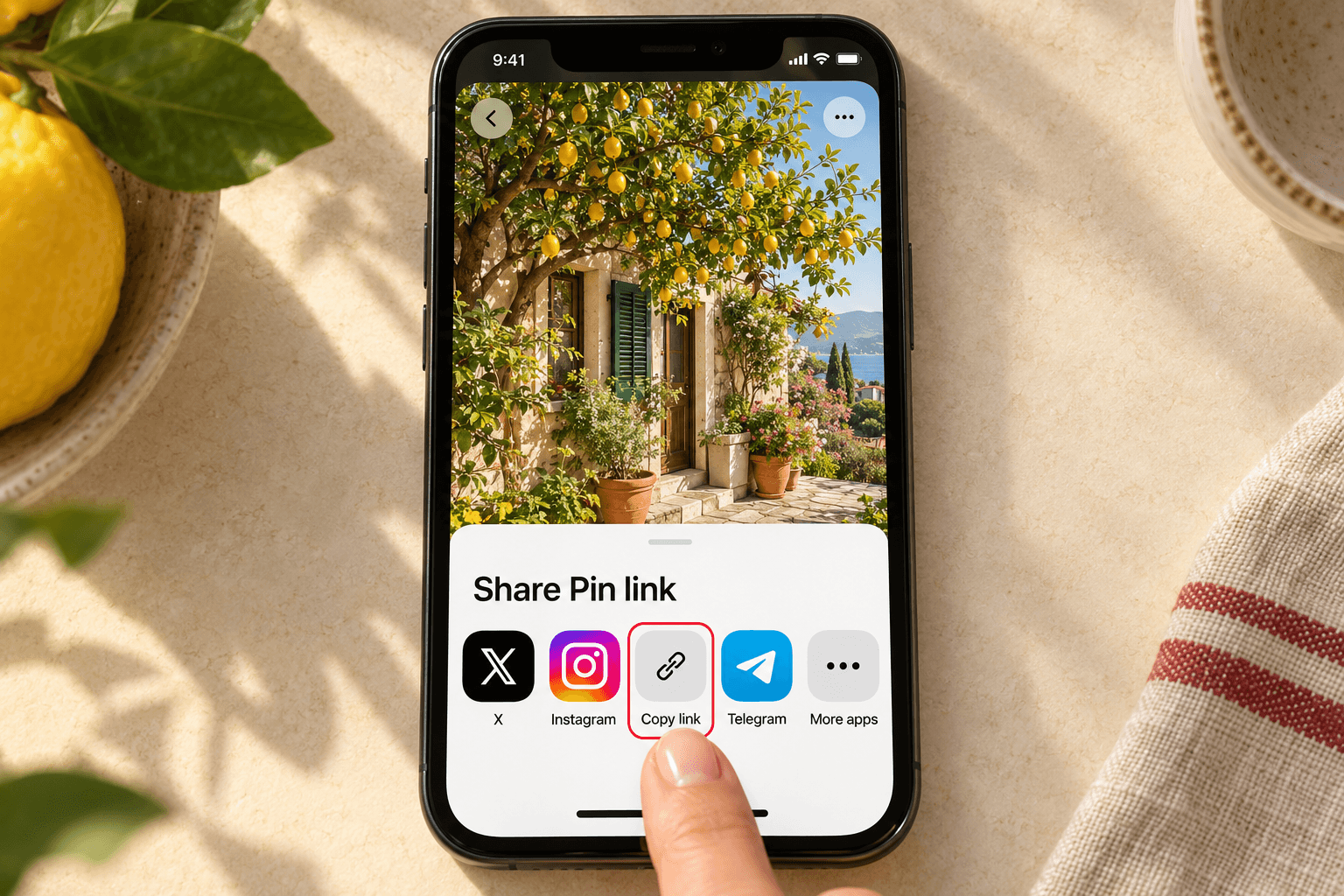
Copy the Pin link
Open the individual Pin in Pinterest, tap Share, and choose Copy link. On pinterest.com, you can also copy the opened Pin’s URL from the address bar. Use a public Pin link rather than a board or profile link.
 2
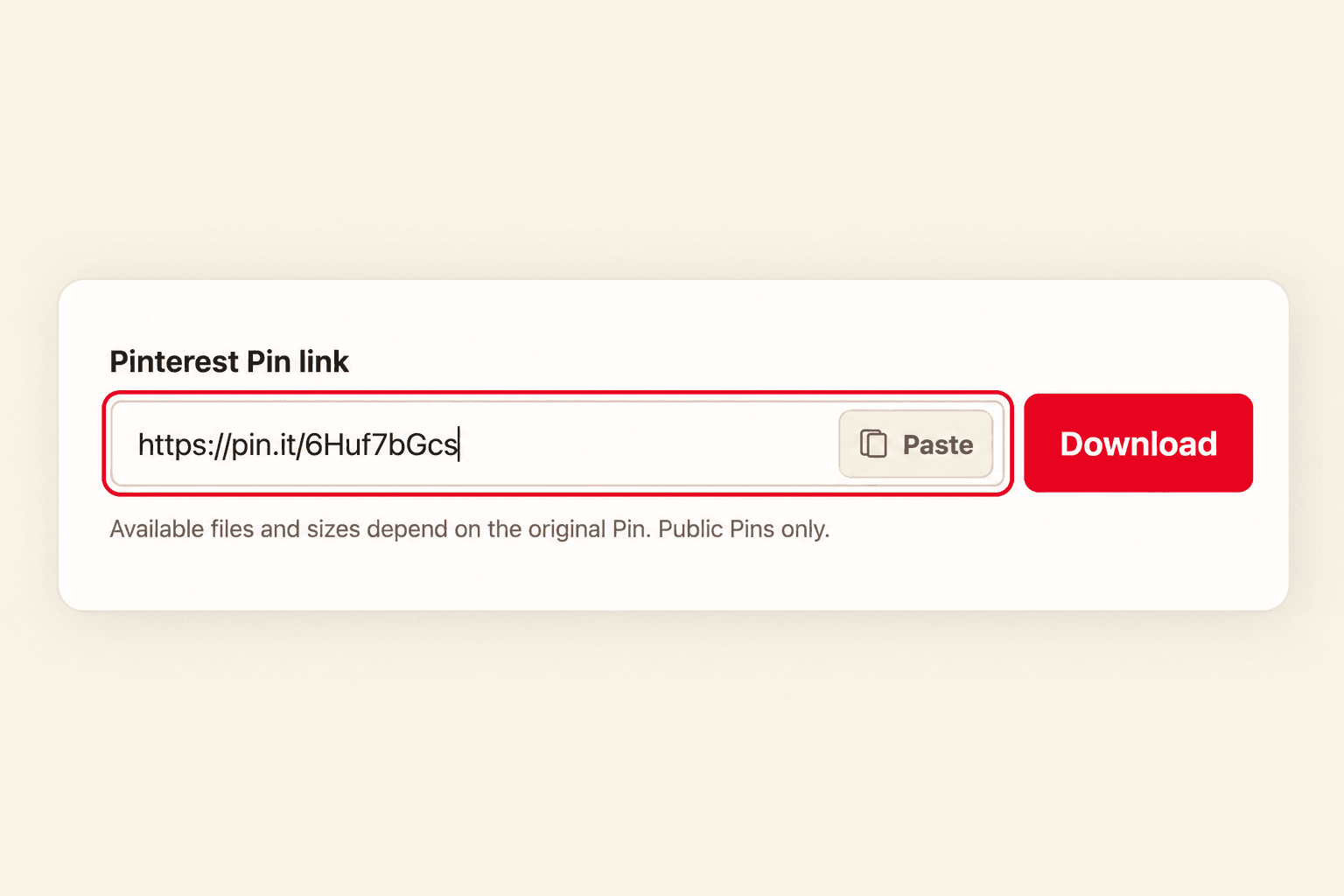
Paste it into PinFetch
Paste the link into the box at the top of this page and click Download. PinFetch reads the public Pin and shows a media preview with the available file options and dimensions. No account, app, or browser extension is needed.
 3
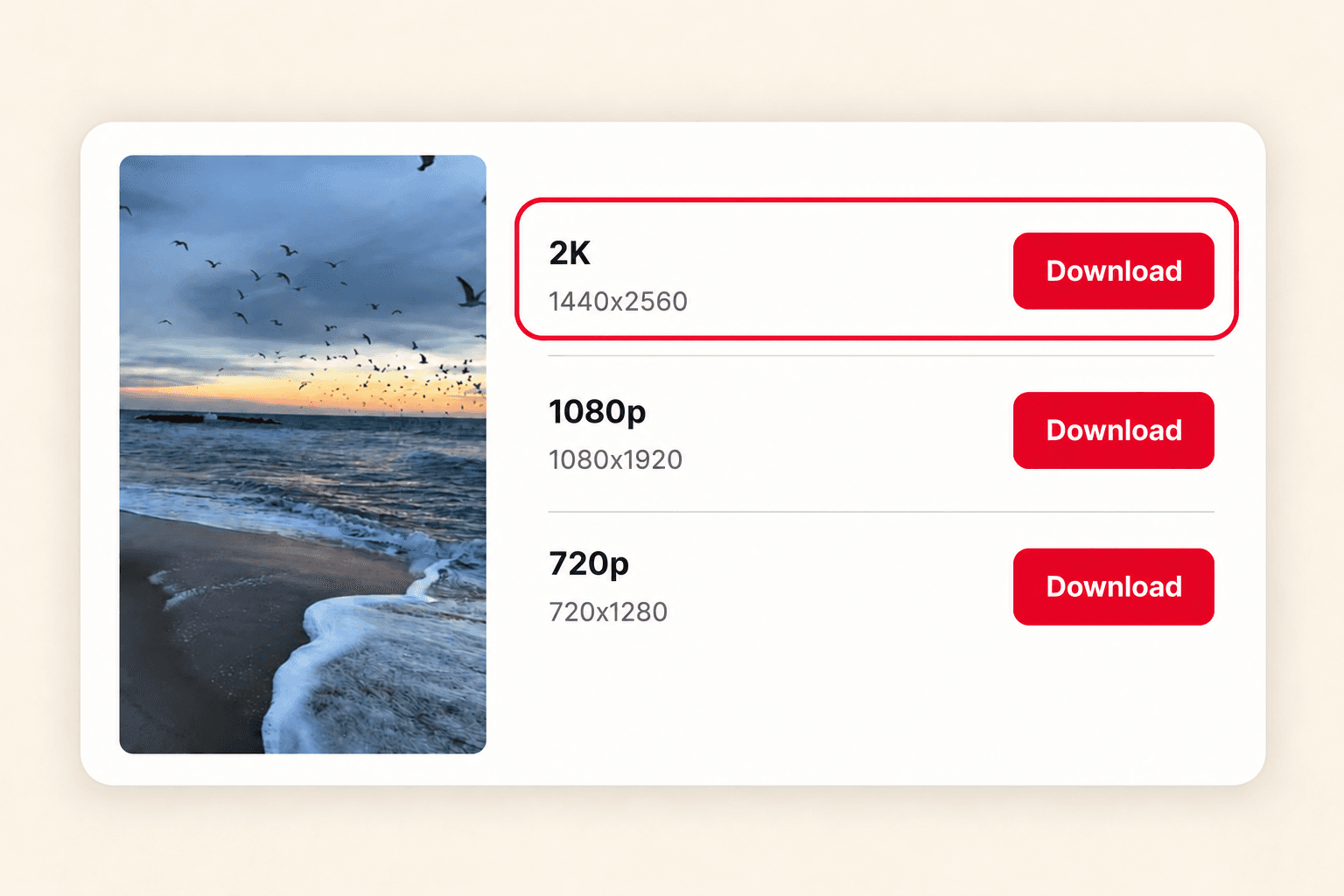
Choose video quality and save
Compare the available MP4 resolutions and click Download next to the version you want. Quality depends on the source Pin. Find the completed file in your browser’s Downloads on a computer or Android, or in Safari Downloads or Files on iPhone and iPad.
Video
Pinterest Video Downloader features
Direct MP4 files
Download the MP4 versions Pinterest makes available for a public video Pin.
Available sizes
Choose from the resolutions returned for that Pin. Options vary by source.
No video conversion
PinFetch provides available source files without re-encoding or upscaling them.
Save in your browser
Use the page on a phone, tablet, or computer without an app or sign-up.
Video
Formats and video quality
PinFetch lists direct MP4 files available for a public video Pin. Resolutions depend on the source Pin; PinFetch does not upscale or re-encode the video.
Copy the link to one video Pin
Open the specific video Pin in Pinterest, choose Share, and copy its link. A board or profile link is not a link to one video Pin. PinFetch also resolves supported pin.it short links.
Choose an MP4 version
After you submit the link, PinFetch lists the direct MP4 versions it can retrieve for that Pin. Choose among the available options. A 4K file appears only if Pinterest provides that version; PinFetch does not upscale or re-encode video.
Common resolutions: HD, 4K, and smaller files
A public video Pin may offer several MP4 resolutions, such as 360p, 540p, or 720p. The options are supplied by Pinterest, rather than created by PinFetch. Read the dimensions beside each download button to compare the files: a portrait video may show 720 × 1280 rather than a landscape shape. PinFetch shows up to three available options, with the highest resolution first. Choose a smaller version when you prefer a smaller download, or the largest available version when detail matters more.
Why a video may have no 4K option
Seeing a sharp preview or a title that mentions 4K does not establish that a downloadable 4K MP4 exists. The result depends on the versions Pinterest returns for that individual Pin. If there is no 4K option in the results, PinFetch cannot produce one from a lower-resolution source. Enlarging a video would not recover missing detail. Try the highest available file and judge its quality at the size you plan to view it; do not assume another Pin will offer the same resolutions.
Save a Pinterest video on iPhone
Copy the individual video Pin link in Pinterest, then open this page in Safari and paste it into the downloader. After choosing a version, check Safari’s download list and open the downloaded file. You can also look in the Files app, in the download location configured for Safari. Saving a file does not automatically place it in Photos. If the file opens and the share sheet offers Save Video, use that option to keep a copy in Photos. Available actions depend on your device and the file.
Save a Pinterest video on iPad
Use the same public Pin link on iPad: copy it from Pinterest, open PinFetch in Safari, and choose an available MP4. Check Safari’s download list first if you cannot find the file. In Files, browse the location selected for Safari downloads; that location may be in iCloud Drive or on the iPad. Open the file before moving it to another folder so you can confirm that it is the version you wanted. Downloading through this page does not add the video to a Pinterest board.
Save a Pinterest video on Android
Open the Pin in Pinterest, use Share to copy its link, and switch to Chrome. Paste the link here and select the MP4 version you want. Once the browser finishes downloading, open Chrome’s Downloads list or use your device’s file manager to find the downloaded file. Gallery apps do not all display files from every folder immediately, so check the browser before downloading again. You can move or share the file using your device’s available controls. PinFetch does not keep a library from which to restore it later.
Why there is no MP3 extraction or transcoding
PinFetch retrieves available source files; it is not an audio extractor or a media converter. Selecting a video downloads the supplied MP4 rather than an MP3 track, a newly encoded video, or a GIF made from its frames. Keeping that boundary avoids promising a format that the Pin does not expose. If you need a different format for an editing workflow, conversion is a separate step in software you choose. A missing MP4 option cannot be fixed here by renaming another file or changing its extension.
In Pinterest, open the video, tap Share, then Copy link. Paste it into the box above and tap Download. On iPhone or iPad (iOS), find the file in Safari Downloads or the Files app. On Android, check Downloads in Chrome.
Pinterest video download questions
Do I need a Pinterest video downloader app or APK?
No. PinFetch runs in your browser; no downloader app, APK, PC software, or extension is needed. Paste a public Pin link on this page to check the available files.
Can I use PinFetch as a Pinterest 4K video downloader?
Only when Pinterest provides a matching 4K MP4 source for that public Pin. PinFetch lists available files and does not upscale a lower-resolution video.
Does PinFetch convert Pinterest videos to MP4?
PinFetch downloads direct MP4 versions available for the Pin; it does not convert or re-encode the video. If no downloadable MP4 version is available, there is no video file to offer.
How do I copy the correct Pinterest video link?
Open the individual video Pin, use Pinterest's Share option, and copy the Pin link. Do not paste a board or profile URL.
Do I need to sign in to Pinterest?
No. PinFetch reads public Pins without a Pinterest sign-in. Private or restricted Pins cannot be retrieved.
Can I download a private Pinterest video?
No. The Pin must be public and readable without signing in. Private, deleted, or restricted Pins are not available.
Can I download all videos from a board at once?
No. PinFetch processes one individual Pin link at a time. A board or profile link does not identify one video Pin.
Does PinFetch add or remove a watermark?
PinFetch does not add a watermark or re-encode the source video. Any watermark already present in the Pinterest source remains in the downloaded file.
Where does the downloaded video go?
Your browser saves it to its default download location. Check the browser’s Downloads list or the Downloads folder on your device.
Does PinFetch keep a copy of the video?
PinFetch streams the selected video from Pinterest to your browser. It does not keep a server-side file copy or provide a saved-file library.
How do I download a Pinterest video on iPhone, iPad, or Android?
In Pinterest, open the video post you want to save. Tap Share, then Copy link. Return to PinFetch, paste the link into the box at the top, and tap Download. Choose a version and tap Download. On iPhone or iPad (iOS), check Safari Downloads or the Files app. On Android, check Downloads in Chrome.